“Is my computer slow because of RAM or SSD?” It’s one of the most common questions we hear from readers of Decent Tech, and it’s an excellent question — because RAM and SSD are the two upgrades that do the most to make an old PC feel brand new. Yet people commonly confuse the two, buy the wrong upgrade, and waste money.
In this complete guide, we’ll explain exactly what RAM and SSD do, how they work together, which one makes a bigger difference in everyday use, and how to know which upgrade is right for your specific computer. By the end, you’ll never again wonder whether your machine needs more memory or a faster drive.
RAM and SSD: The Short Version
If you only take away one thing from this article, remember this: the SSD is usually the upgrade that makes an old computer feel fast again, while RAM matters most when you run out of memory during real work.
- RAM (memory) is the workspace your computer uses to run programs right now. More RAM lets you keep more apps open without slowing down. Once it’s full, everything stutters.
- SSD (storage) is where your files and programs live permanently. An SSD reads and writes data many times faster than an old hard drive (HDD), which is why booting, opening apps and loading games speed up dramatically.
Both improve speed, but they’re solving different bottlenecks. Let’s dig into each one properly.
What Is RAM and What Does It Do?
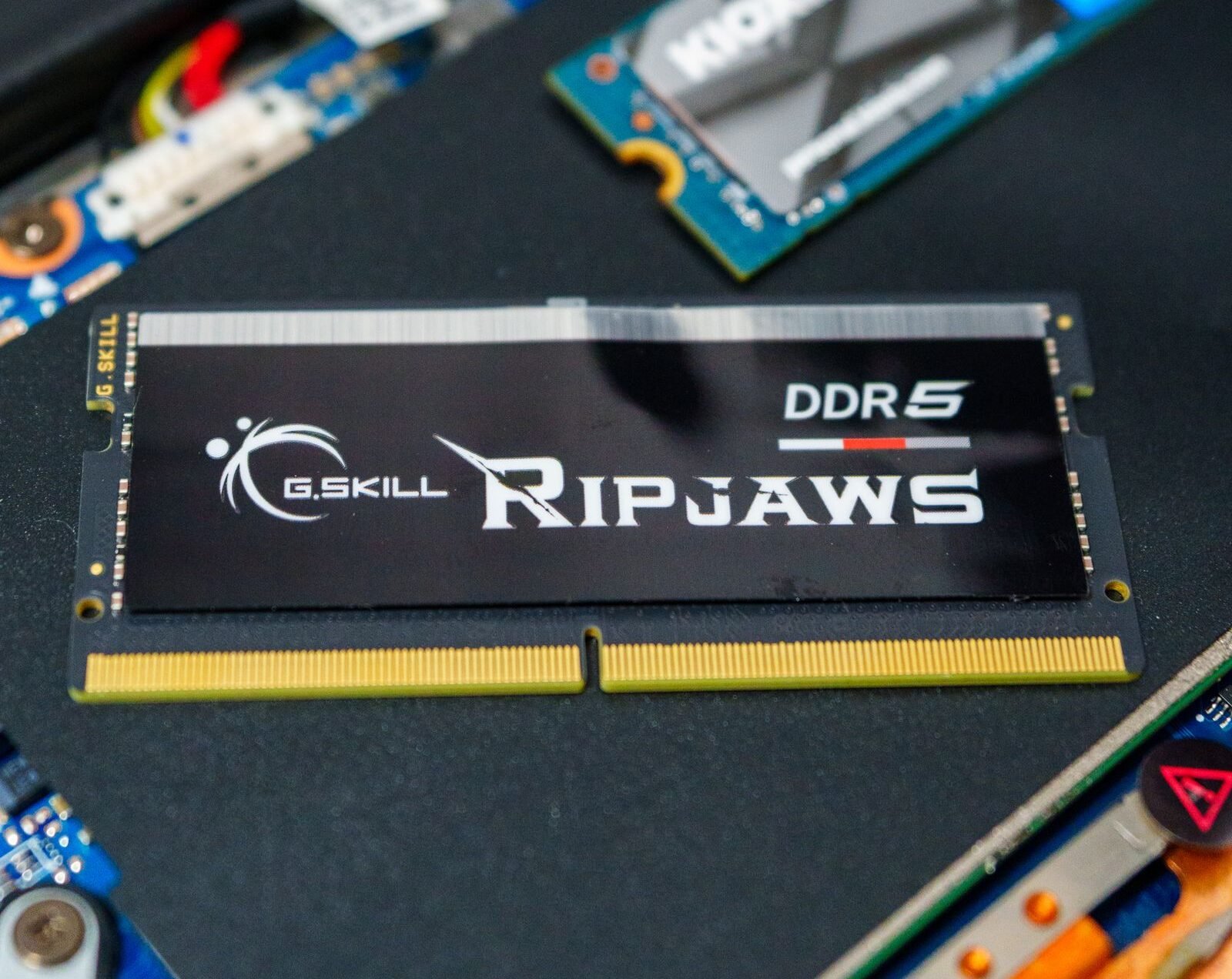
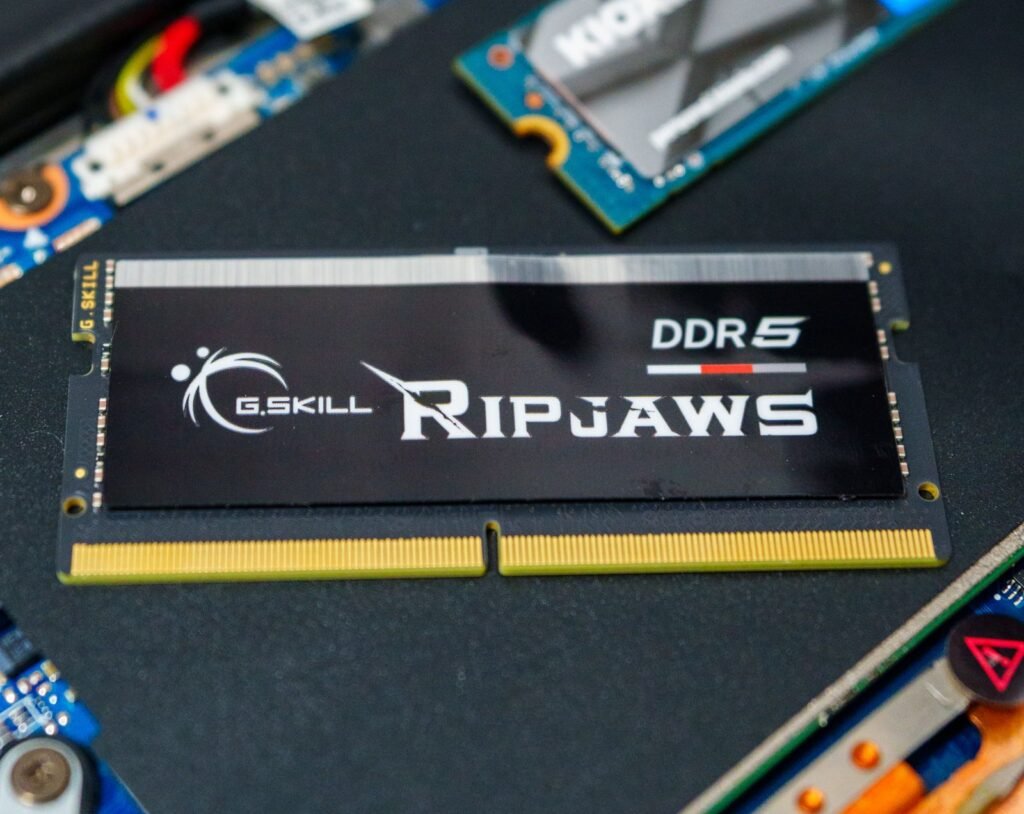
RAM stands for Random Access Memory. Think of it as your computer’s short-term working desk. When you open an app, its data is loaded from storage into RAM so the processor can work with it instantly. When you close the app, that workspace is freed for something else.
RAM is volatile — which simply means it forgets everything the moment the power goes off. That’s why a program you’re working on has to be “saved” to permanent storage; if you only kept it in RAM and your computer lost power, it would vanish.
Here’s what RAM directly affects in daily use:
- Multitasking: RAM is what lets you run a browser with 20 tabs, a document editor, music and a video call at the same time.
- Program capacity: Each program reserves a share of RAM. Bigger programs (video editors, virtual machines, large spreadsheets) need a lot.
- Smoothness: When RAM runs out, the operating system starts “paging” data to storage, which causes the lag, freezing and stuttering people describe as a slow computer.
Common RAM amounts in 2026: 8GB is the minimum for comfortable use, 16GB is the sweet spot for most people, and 32GB suits gamers, content creators and developers.
What Is an SSD and What Does It Do?
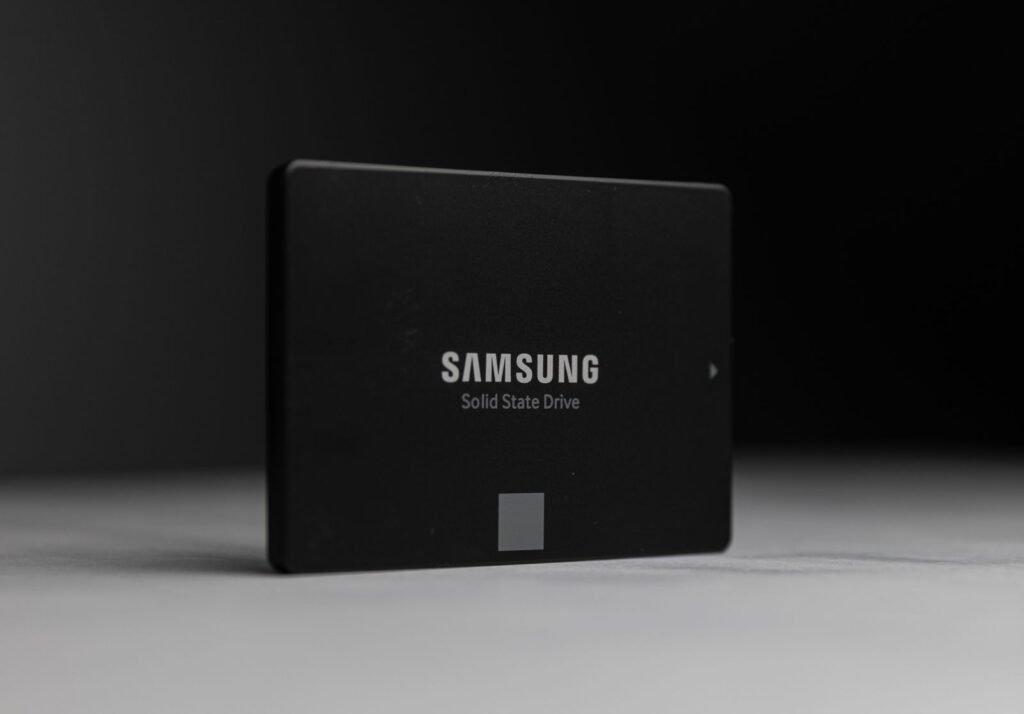
An SSD (Solid-State Drive) is your computer’s long-term storage. It holds your operating system, programs, photos, documents and games permanently — even when the power is off.
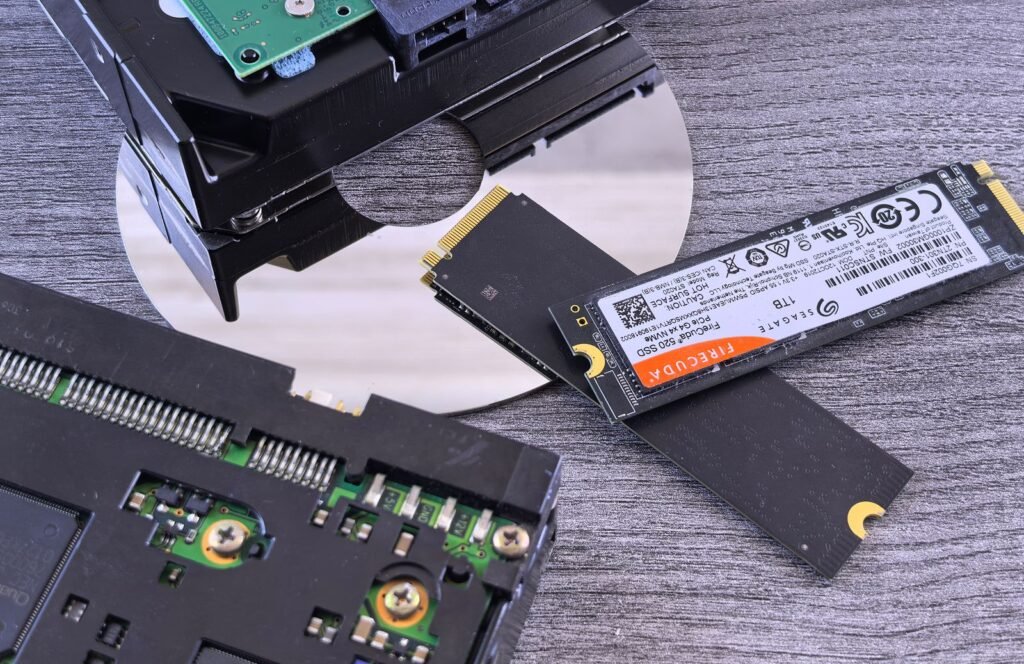
Unlike old hard disk drives (HDDs), which store data on spinning magnetic platters with a moving read/write head, an SSD stores data on flash memory chips with no moving parts. That single difference changes everything about speed.
Why the SSD makes such a huge practical difference:
- Boot times: A typical Windows PC on an old hard drive takes 60–120 seconds to boot. On an SSD, it’s often under 15 seconds.
- App launches: Programs like browsers, Office and PhotoShop open almost instantly instead of creeping.
- Game loading: Game levels and shaders load dramatically faster on an SSD.
- File transfers: Copying big files, extracting archives and syncing photo libraries run many times faster.
- Overall responsiveness: Because Windows constantly reads and writes to storage in the background, a faster drive makes the entire system feel snappier.
Modern NVMe SSDs are especially fast. An NVMe drive can be 10–15× quicker than an older hard drive and roughly 3–5× faster than an even older SATA SSD.
RAM vs SSD: Head-to-Head Comparison
Let’s put the two side by side so the difference is crystal clear.
| Factor | RAM | SSD |
|---|---|---|
| Role | Short-term working memory | Long-term permanent storage |
| Duration of data | Lost when powered off | Persists when powered off |
| What it speeds up | Multitasking, program capacity, smoothness when many apps are open | Boot, app launching, file transfers, game loading |
| Typical upgrade size | Starting at 16GB | Starting at 250GB–1TB |
| Ease of upgrade | Easy on desktops; varies on laptops | Easy on both if the drive is accessible |
| Typical cost | Slightly more per GB | Cheap per GB |
| Best for | Workers, multitaskers, VM users | Almost every Windows PC user still on a hard drive |
Which One Makes Your PC Faster: SSD or RAM?
This is the heart of the question, and the honest answer is: it depends on what’s slowing your computer down right now. Let’s look at the two scenarios people actually find themselves in.
Scenario 1: The Computer Is Slow to Boot and Open Apps → Upgrade the SSD
If your PC still runs on a mechanical hard drive — or even an older SSD — and launching Windows, opening any app, or moving files feels painfully slow, the SSD is your biggest win. This is the single most dramatic upgrade any computer can get. Switching from a hard drive to an NVMe SSD typically turns a machine that takes two minutes to boot into one that’s ready in under fifteen seconds. If there’s any one thing to do first on an old Windows laptop or desktop, this is it.
Scenario 2: The Computer Freezes When Many Apps Are Open → Add More RAM
If the machine boots fine and apps open reasonably quickly, but the whole system starts stuttering, freezing, or bringing up “your system is low on memory” messages whenever you have a browser full of tabs plus other programs open, you’re running out of RAM. The fix is adding more memory. When the operating system runs out of RAM, it starts swapping data out to the storage drive — and that grinding slowness is exactly what extra RAM eliminates.
The key insight is that RAM and SSD solve different problems, which is why so many guides say “do both.” For most people, the ideal upgrade path is:
- Move or upgrade to an SSD for a huge day-to-day speed leap.
- Add enough RAM (16GB for most users) to stop memory-related stuttering.
How to Check If Your Computer Needs More RAM or a New SSD
You don’t need to guess. Here’s how to diagnose your own machine in a few minutes.
Check if you’re low on RAM
- Windows: Open Task Manager (Ctrl+Shift+Esc) and look at the Performance tab → Memory. If memory usage constantly sits at 90–100% while you work, more RAM will help.
- Mac: Open Activity Monitor → the Memory tab. If the “Memory Pressure” graph is red or yellow, you’re running short.
- Linux/ChromeOS: Use the system monitor; if swap usage climbs and apps lag when many are open, you need more memory.
Check if your storage is the bottleneck
- If your system drive is a mechanical hard drive (you can see this in Task Manager’s Performance → Disk section), it’s a safe bet an SSD will transform your experience.
- Look at your drive’s “Type” — HDD means spinning disk, SSD means solid state. If it says SSD, check whether the model is an older SATA drive; upgrading to NVMe is still a worthwhile jump on many systems.
- If Windows boots in more than 30–40 seconds or apps routinely take 5+ seconds to open, storage speed is very likely your problem.
Can You Only Afford One Upgrade? Start With the SSD
If your budget only stretches to one component, we’d recommend the SSD in nearly every case. Here’s the honest reasoning: a fast SSD makes every single action on your computer feel quicker — from turning it on to opening any program to moving files. It’s a difference you notice every day, immediately. Extra RAM, by contrast, only matters when your current memory is genuinely full, and many people can get by fine with 8–16GB for browsing, office work and streaming.
There are two exceptions. If you’re a video editor, 3D artist, games developer or someone who constantly runs many heavy programs side by side, RAM is more likely to be your actual bottleneck first. And if you already have an SSD and still suffer frequent freezes under load, the memory is probably the issue. In every other case, storage wins.
How to Upgrade: A Quick Starter Guide
Upgrading isn’t as scary as it sounds. Here’s a brief overview so you know what’s involved.
Installing an SSD
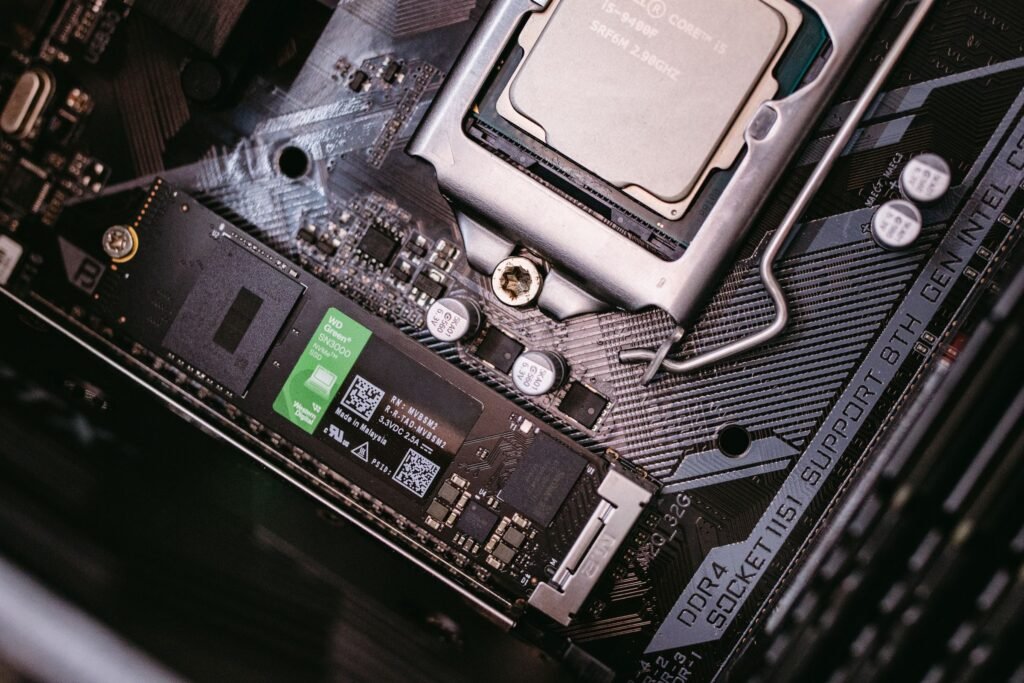
- For desktops, a SATA SSD screws into an empty drive bay, or an M.2 NVMe drive slots directly into the motherboard — no cables required.
- For many laptops, the storage drive sits under a removable base panel. Some ultra-thin laptops solder storage to the motherboard, so always check your model’s spec sheet first.
- After installing, clone your old drive with a free tool (many brands include one) or do a fresh Windows install for the cleanest, fastest result.
Adding RAM
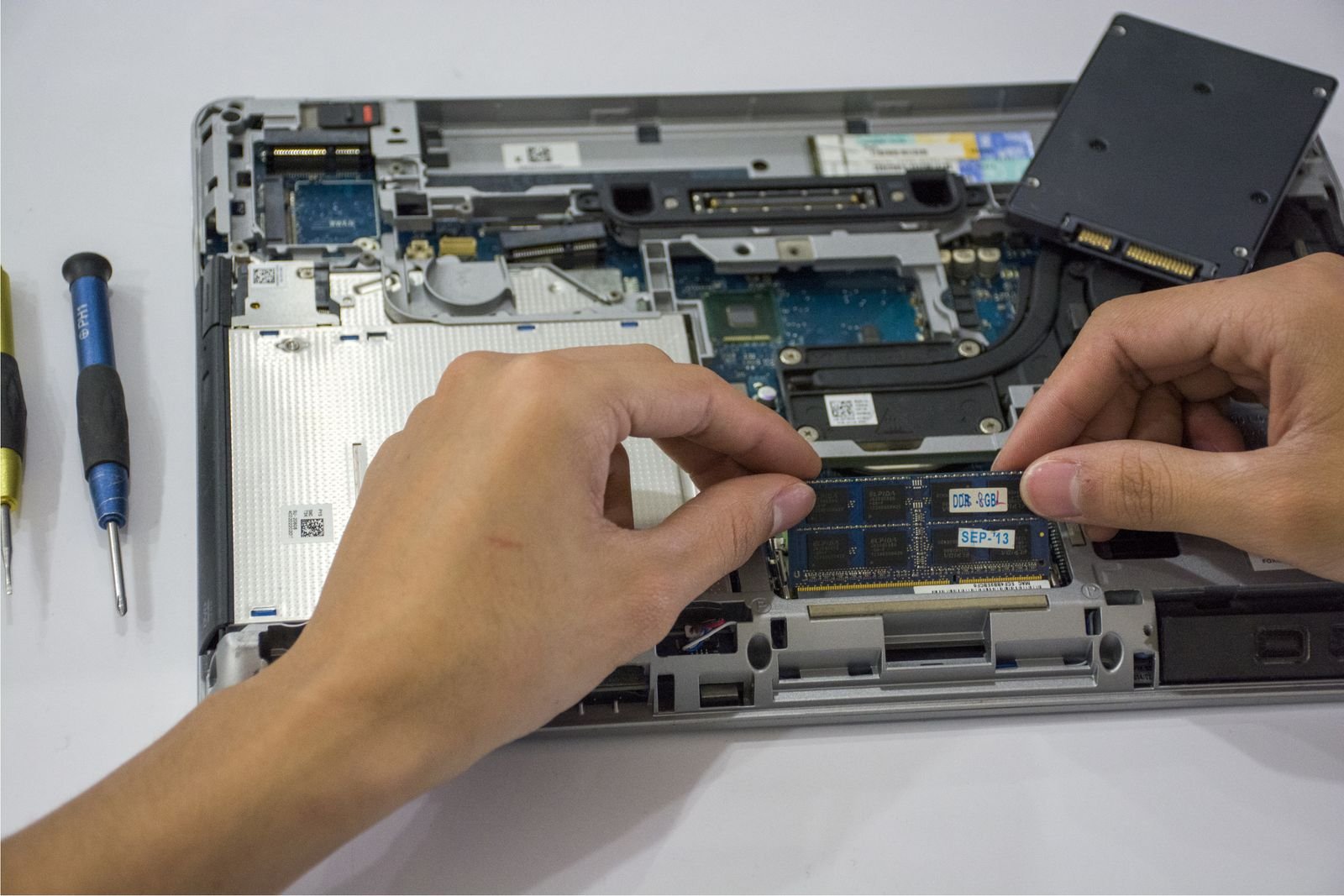
- Desktops simply click RAM sticks into empty slots — the easiest of all upgrades.
- Laptops vary: some have a single access panel, others are sealed. Use a site like Crucial’s compatibility checker to find the exact sticks and confirm your laptop is upgradeable.
- Match the type (DDR4 vs DDR5), speed and capacity supported by your motherboard, and install matched pairs if possible.
Frequently Asked Questions
Will more RAM make my PC faster?
Only if you’re running out of memory. If your computer freezes or slows whenever many apps are open, more RAM fixes it. If your machine boots slowly but rarely runs out of memory, RAM won’t help much — storage speed will.
Will an SSD make my PC faster?
Yes, dramatically. Upgrading from a hard drive to any SSD speeds up booting, app launches, file transfers and overall responsiveness. It’s widely considered the single biggest performance upgrade a computer can receive.
Do I need both a new SSD and more RAM?
For the fastest everyday experience, yes — they solve different bottlenecks. An SSD makes everything load faster; more RAM keeps everything running smoothly when many programs are open. If you only pick one, most people benefit more from the SSD first.
Is 8GB of RAM enough in 2026?
It’s the minimum for comfortable general use. Light browsing, office work and streaming all work on 8GB. For multitasking power users, gamers and creators, 16GB is the recommended sweet spot.
Does an SSD work with old computers?
Yes, as long as the machine has a standard drive connection (SATA or M.2). SSDs are one of the best ways to give an old laptop or desktop a new lease of life.
Final Verdict: RAM vs SSD
Here’s the complete picture in one paragraph. The SSD is the upgrade that makes a slow computer feel fast again — it slashes boot and loading times and makes every action snappier, which is why it’s our top recommendation for almost anyone still using a hard drive. RAM is the upgrade that keeps a fast computer from stuttering when you multitask hard, and it’s essential if your memory constantly maxes out. For the very best experience on a modest budget, do both — and if you can only afford one, start with the SSD and add RAM later.
If you’re looking for a new machine instead of upgrading an old one, check our guide to the best laptops for students in 2026 — every model there ships with a modern SSD and sensible RAM for smooth everyday speed.