A slow laptop is one of the most frustrating tech problems — but you usually don’t need to buy a new one to fix it. Whether you’re dealing with a Windows laptop, a MacBook or a Chromebook, these 15 practical fixes will make a slow laptop fast again in most cases.
I’ve put together this slow laptop speed-up guide with the fixes that work in 2026, starting with the quickest wins and moving to more advanced cleanups. No technical degree required.
Quick Fixes for a Slow Laptop
1. Restart Your Laptop
It sounds too simple, but a full restart clears memory leaks, stops background processes and installs pending updates. If your laptop hasn’t been restarted in days, this alone can give you a noticeable speed boost.
2. Close Unused Browser Tabs
Each open tab eats RAM. If you usually have 20+ tabs open, close the ones you don’t need or use a tab suspender to put inactive tabs to sleep. This is one of the fastest ways to speed up a slow laptop.
3. Update Windows, macOS or ChromeOS
Updates include performance fixes and security patches. Run Windows Update, or open System Settings > Software Update on a Mac, and install everything that’s pending.
4. Install Pending Driver Updates
Outdated graphics, chipset and network drivers can cause slowdowns and freezing. On Windows, use the manufacturer’s support app (Lenovo Vantage, HP Support Assistant, Dell SupportAssist) rather than a random third-party “driver updater.”
5. Scan for Viruses and Malware
Malware can quietly hog your CPU and network. Run Windows Security or the built-in macOS malware scanner, and if your laptop suddenly got slow, do a full scan — not just a quick one.

Free Up Disk Space and Memory
6. Free Up Disk Space
A full hard drive slows everything down. Windows laptops need at least 10–15% free space to perform well. Uninstall unused apps, clear temp files (Disk Cleanup on Windows, or Storage Management on macOS), and empty the Recycle Bin.
7. Uninstall Programs You Don’t Use
Old apps run background services that slow startup and eat RAM. Remove software you haven’t used in a year — that includes bloatware and trial programs that came pre-installed.
8. Disable Startup Programs
Too many apps launching at login is a classic cause of a slow laptop. On Windows, open Task Manager > Startup and disable anything you don’t need at boot. On a Mac, check System Settings > General > Login Items.
9. Clear Browser Cache and Extensions
Uninstall browser extensions you don’t use — they run in the background on every page. Use your browser’s “Reset settings” or “Clear cache” option to clear years of junk data.
10. Use Disk Cleanup and Storage Tools
Windows’ Storage Sense and macOS’s storage tools automatically delete temporary files and old downloads. Turn these on so your laptop stays clean without manual effort.

Deeper Fixes: Speed Up a Slow Laptop Long-Term
11. Upgrade to an SSD (If You’re Still on a Hard Drive)
This is the single biggest upgrade you can make. Swapping an old mechanical hard drive for a solid-state drive (SSD) can make an old laptop feel years younger — boot times and app loading drop dramatically. It’s the #1 answer when someone asks how to speed up a slow laptop.
12. Add More RAM
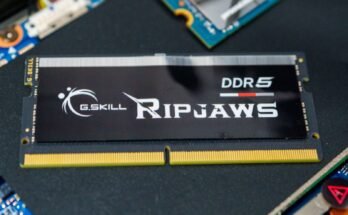
If your laptop has 4GB or 8GB of RAM and you regularly run out, adding more memory stops slowdowns and freezing. Many laptops let you add RAM cheaply — check your model’s manual first.
13. Check Battery and Power Settings
On battery-saver or power-saver mode, laptops deliberately run slower to save energy. Switching to “Best performance” or plugging in while working can immediately fix sluggish performance.
14. Keep the Laptop Cool and Clean
Overheating throttles your CPU, making a laptop slow. Keep vents clear, don’t block airflow, and consider cleaning dust from fans. If your fan is constantly loud and the bottom is hot, cooling is likely your problem.
15. Reset or Reinstall the Operating System
If nothing else works, a factory reset or clean reinstall of Windows, macOS or ChromeOS gives you a fresh, fast system. Back up your files first, then reset — this is the ultimate slow laptop fix.
How Do I Know My Laptop Is Too Old to Speed Up?
If your laptop is more than 8–10 years old, has a hard drive instead of an SSD, and can’t be upgraded, a new laptop might be the smarter buy. Our best laptop buying guide covers great modern options at every budget.
Frequently Asked Questions
What makes a laptop slow?
The most common causes are too many startup programs, malware, a nearly full hard drive, too little RAM, an old hard drive instead of an SSD, and overheating.
Will adding an SSD make my laptop faster?
Yes — upgrading from a hard drive to an SSD is the biggest single performance improvement you can make to an older laptop.
Does more RAM speed up a laptop?
If you run out of memory, yes. Adding RAM stops programs from swapping to disk, which eliminates freezing and lag under load.
How often should I restart my laptop?
Restarting at least once a week helps clear background processes and memory leaks. If your laptop is slow right now, restarting it is the first fix to try.
Final Thoughts: Speed Up a Slow Laptop Without Buying New
In most cases, a slow laptop can be made fast again with a few targeted fixes — start with a restart, close background apps, free up disk space, and if it’s still slow, upgrade to an SSD or add RAM.
Try the fixes in order and test after each one. You’ll usually find the culprit quickly, and you might avoid buying a new laptop altogether.